OBS Studio: receiving QR and payment alerts
The Heth widget is a Browser source in OBS Studio. It displays your receiving QR and alerts for incoming, completed Heth transfers. It does not install a native OBS plugin and does not control scenes, recording or streaming. An incoming transfer is not automatically an author/platform donation.
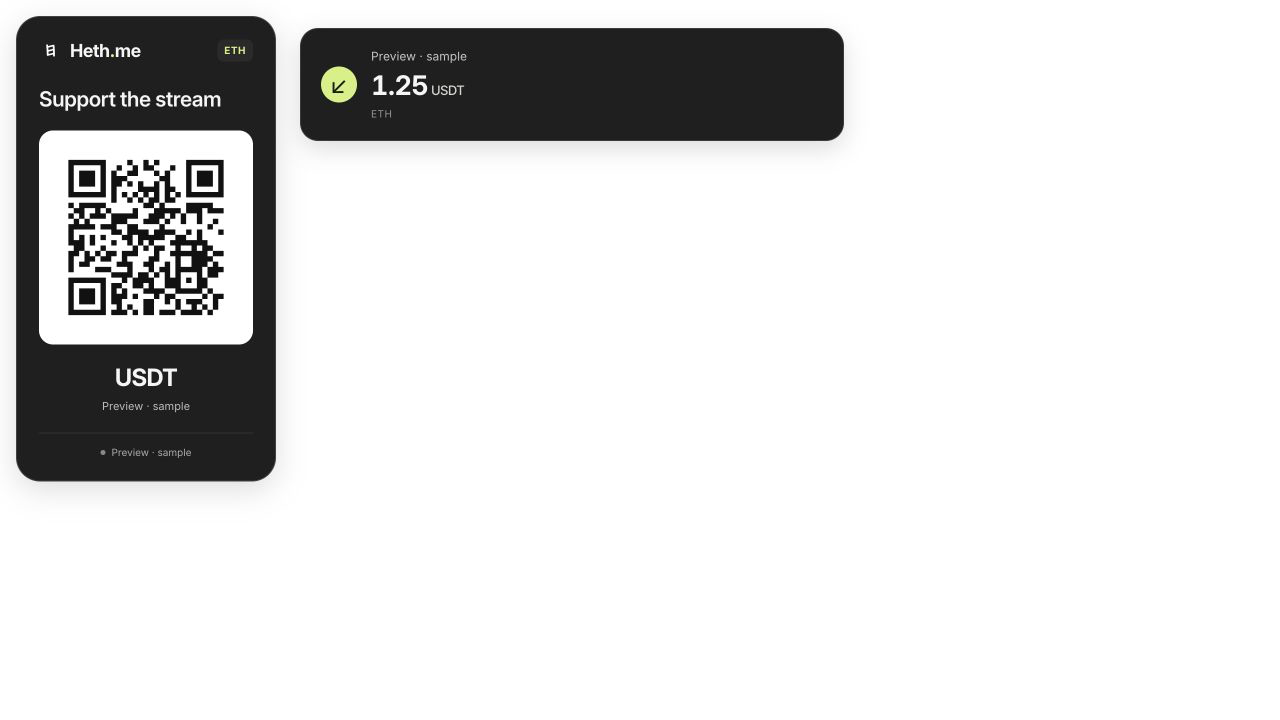
Preview of the updated widget in English. Sample event; the preview QR does not initiate a payment.
Connect the widget
- Open Heth and sign in to the account that will receive donations.
- Open Settings → OBS Studio. The recipient is your signed-in Heth account.
- Select an available currency/network pair. Optionally enter a suggested amount, caption, theme and language. An empty amount lets the payer choose it.
- Save the appearance. Choose Approve and create OBS connection to create separate, restricted access for the widget.
- Copy the connection URL. In OBS, add a Browser source and paste the URL. Start with a source size of 900 × 500 pixels; resize or crop to fit your scene.
- Check the recipient, currency and network by scanning the QR with your phone. Review the payment screen before confirming any payment. The QR itself does not move money.
The background is transparent. Keep the QR unobstructed and large enough to scan. Check the result in the actual scene, including at the resolution viewers receive. The widget supports Russian and English independently of your Heth interface language.
Access and privacy
The connection uses a separate API key restricted to OBS. Heth creates the key and puts it in the connection URL, so you do not need to copy a key from Business settings. Existing webhook settings are independent: webhooks send events to your server, while the OBS Browser source reads the widget’s restricted feed directly. You do not need to run a webhook receiver for the standard widget.
An OBS key belongs to your account and can read its widget feed. MCP permissions are granted separately; revoking an OBS connection and revoking an AI connection are separate actions.
The connection URL contains a private OBS access token in its fragment, after #. Treat the whole URL as private: do not put it in your stream description, screenshots, public scene exports or an AI chat. The QR displayed to viewers contains payment details, not this token.
OBS access can read the receiving identifier, appearance settings and a restricted incoming-payment feed. It cannot read your balance or full transaction history, send money or edit settings. In Settings → OBS Studio, revoke an old connection if its URL was exposed or you stopped using it. Create a new connection in Heth when needed.
How alerts work
Alerts represent incoming transfers with status charged. Pending, failed and outgoing operations are excluded. The amount uses the recipient amount and its stored precision; it is not rounded to a whole token. If precision is unavailable, the widget does not invent an amount.
A fresh connection starts with new events. A running browser source can resume from its saved cursor after a short interruption; its replay window is limited to 24 hours. Reloading or recreating a source is not a way to export account history. Verify receipt and final operation details in transaction history, independently of an on-stream alert.
Change the widget with an AI assistant
A connected assistant using the remote MCP service with the appropriate permissions can read the widget settings, view the restricted event feed and propose a connection. It can change ordinary appearance settings with confirmation in the AI client. The already connected widget refreshes saved appearance automatically, normally within 30 seconds.
Creating or revoking access and changing a receiving account require confirmation in Heth. The assistant provides a link to the Heth setup screen; it does not receive the private OBS connection URL. Example requests: “Use an English caption and a minimal theme for my OBS widget” or “Show recent incoming events for my widget”. MCP does not give the assistant control of OBS Studio itself.
Your own layout and AI-assisted customization
The standard Heth settings need no source-code access. For an arbitrary layout, fork the public Heth OBS widget, licensed under MIT. Start with its AI guide, file map and hosting instructions. The repository includes build and hosting instructions.
A coding assistant with access to your copy can change the layout, CSS, fonts, colors and notification presentation, then check a synthetic preview and build. It does not need your live OBS connection URL or payment credentials. A custom build must be hosted: a public repository by itself does not serve incoming-payment alerts.
Heth MCP can read events and change supported Heth appearance settings. It does not edit a repository, compile a custom build or give an assistant access to your hosting account. For arbitrary HTML/CSS layouts, customize the open source project. You can keep using the standard Heth-hosted widget without building anything.
Troubleshooting
Heth shows a 404 instead of the widget: update Heth, check the Browser-source URL and reopen the source. If the error persists, contact support. Do not create new keys to fix a page-loading error.
- No OBS settings entry: update Heth and check your account access with support. Do not paste a general account API key into a widget URL.
- QR appears, no alert: check that the transfer is completed and incoming to this account. The Browser source must remain active and online.
- Access disabled: reconnect in Heth; retrying a revoked URL will not restore permission.
- Wrong asset or network: correct the settings in Heth, wait for the widget to refresh and scan the QR again before accepting payments.
- Old URL uses
api_key=: reconnect through Settings → OBS Studio. Keep the old URL private and revoke an obsolete account key.